
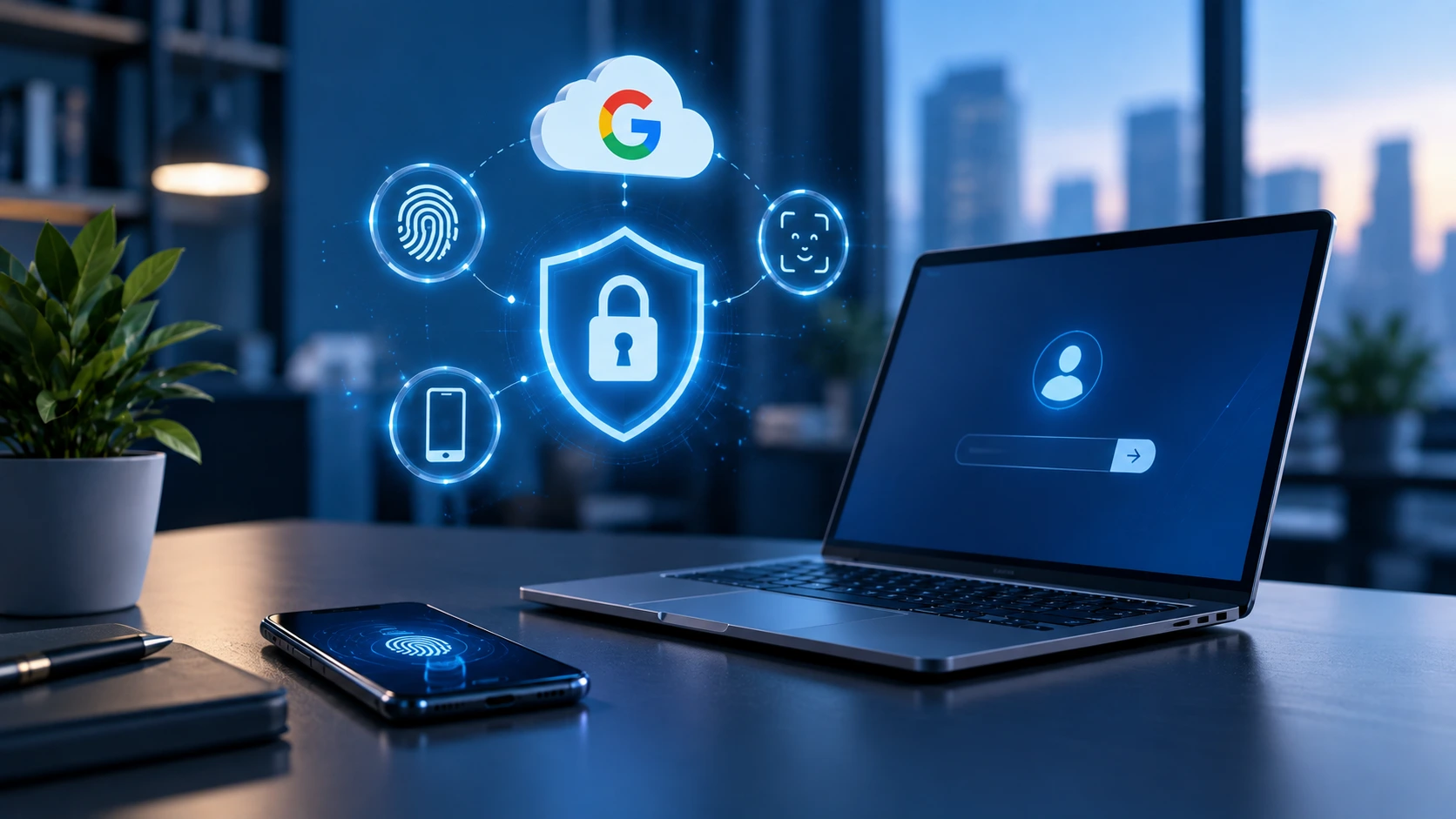
A passkey is a passwordless authentication solution built on FIDO standards. Instead of typing in a password at every login, you verify your identity with a compatible device. Behind the scenes, public-key cryptography is at work. When a passkey is created, a cryptographic key pair is generated. The service stores the public key, while the private key needed to log in is securely bound to the user's device or the passkey manager being used. So at login, you are not sending a secret password to the service that someone could obtain or trick you into revealing on a fake website. This is one of the reasons passkeys are particularly resistant to phishing attacks.
How does Google Passkey work in practice?
Let's say you want to log in to your Google account. In the traditional process, you enter your email address, then your password, and in some cases you also complete a second authentication step. When using a passkey, instead the system may ask you to verify yourself on your device. This can happen, for example, with a fingerprint, facial recognition or the device's PIN code. The authentication takes place locally, and your biometric data does not need to be sent to Google. For the user, this often means a faster process, while strong cryptographic authentication happens in the background.
Why is a passkey more secure than a traditional password?
A traditional password can be obtained in several ways. A well-crafted phishing email, a fake login page, a leaked database, or a password reused across multiple services can all be enough. A passkey works differently.
There is no traditional password that the user has to remember or type into a website. Authentication happens with cryptographic data tied to the given service, which makes it significantly harder for an attacker to obtain the data needed to log in on a fake website. This can be especially important for business Google accounts. Just think about how many things can be connected to a single company Google account: email, calendars, documents, advertising systems, analytics data, company profiles and integrations with external business systems. The security of such an account therefore goes far beyond whether someone can access a single email inbox.
Passkey or two-step verification?
A passkey and traditional two-step verification are not simply two versions of the same solution. Two-step verification typically adds an additional layer of security on top of the password. The user has to verify their identity in a second way after entering the password. A passkey, on the other hand, was designed from the ground up to replace password-based authentication. This can create a more convenient user experience while providing strong protection against attacks that rely on obtaining users' passwords. However, it is important that the specific security settings should always be configured in line with the business and the environment of the Google account being used.
What happens if you lose your device?
This is one of the most common questions about passkeys. If a phone or computer is lost, you do not necessarily lose access to your account permanently. The options depend on how and where you store your passkeys, what other devices you have available, and what recovery and alternative login options you have set up. This is why, for business use, it is especially important to think through access recovery in advance. Security does not begin with turning on a feature. A good system is also prepared for what happens when something does not go according to plan.
Why is all this important for a business?
In digital operations, more and more systems are connected to each other. The CRM can communicate with email, the calendar, appointment scheduling, advertising platforms and many other services. Because of this, a security or authentication change at an external provider is not necessarily an isolated event. For example, if a Google connection's authentication changes, a permission expires, or a previous connection breaks, it can have an impact on the business's daily processes. This is why, alongside digital security, regular checking of integrations is becoming increasingly important.
Setting up Google Passkey step by step
1. Sign in to your Google account
Open your Google account settings and sign in to the account for which you want to create the passkey.
2. Open the passkey settings
In your Google account, find the Security and sign-in section, then among the sign-in options for Google select the Passkeys and security keys menu item. Google may ask you to verify your identity again before continuing.
3. Select "Create a passkey"
Click the Create a passkey button. If you want to create it on the phone or computer you are currently using, select the Create a passkey option again.
4. Verify yourself on your device
Your device will then ask you to unlock it in the usual way. Depending on the device, this can happen, for example, with a fingerprint, facial recognition, a PIN code, or another screen lock method. This creates the passkey.
5. Review the created passkeys
On the passkey management interface of your Google account, you can view the passkeys associated with the account. If you want to create a passkey on several of your own devices, you can run the process on those devices too. Important: only create a passkey on a device that you own and that you use. According to Google's warning, anyone who can unlock the given device can also access your Google account using the passkey created on it.
6. Check the "Skip password when possible" setting
After creating your first passkey, Google may use a passwordless sign-in experience that favors the passkey by default. If you want to use this, leave the "Skip password when possible" option turned on. If you would prefer Google to ask for your password first by default, you can turn this feature off in the Security and sign-in section of your Google account.
7. Test the sign-in
After setup, it is worth trying out the new sign-in method. The next time, Google may offer signing in with the passkey. Instead of typing in your password, you verify yourself on your device. If you want to use the passkey on your phone from another computer, a Bluetooth connection may also be required during the process.
8. Check your recovery options too
Alongside setting up the passkey, it is worth checking that the recovery phone number and email address associated with your Google account are up to date. This is especially important for a business account. You don't want to find out that you don't have a proper alternative access method when one of your devices is lost or malfunctions.
Now is a good time to check your Sales Innovo settings too
If you use Sales Innovo together with Google services, it is worth logging into the system from time to time and checking that all connections are working properly. Review your Google integrations, connected accounts, calendars, the settings related to email sending, and the automations that rely on external services. This can be especially important if you recently made a security or sign-in change in your Google account. A few minutes of checking is much simpler than later discovering that an important process has not been working the way it should for days. It is also worth reviewing from time to time whether the right people have access to company systems, whether there are any unnecessary user permissions, and whether key integrations are still active.
If you would like to check your Sales Innovo settings, you experience an issue with one of the integrations, or you need help configuring the system properly, get in touch with us! The Sales Innovo team will help you review the options.